- Use the links above to download the app onto your phone
-
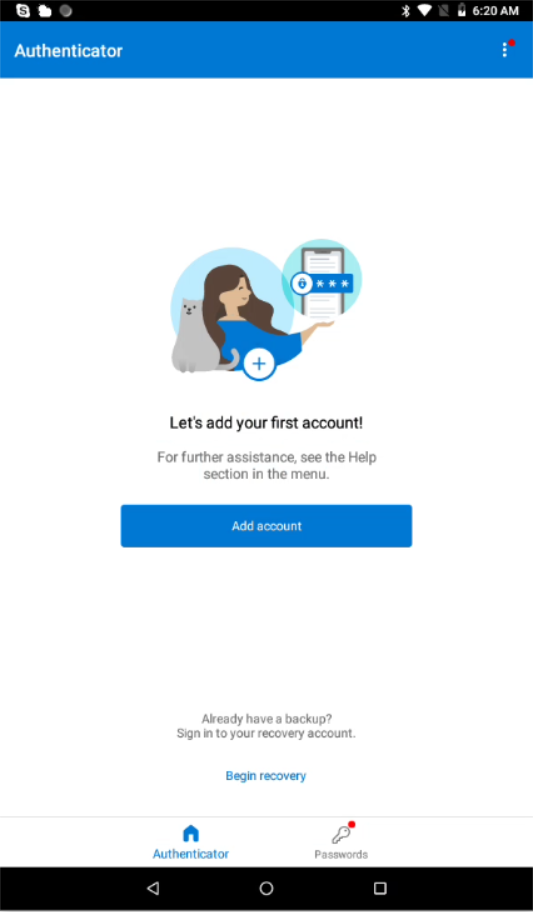
When the app has completed installation, open it. Click on "Add Account" to begin
-
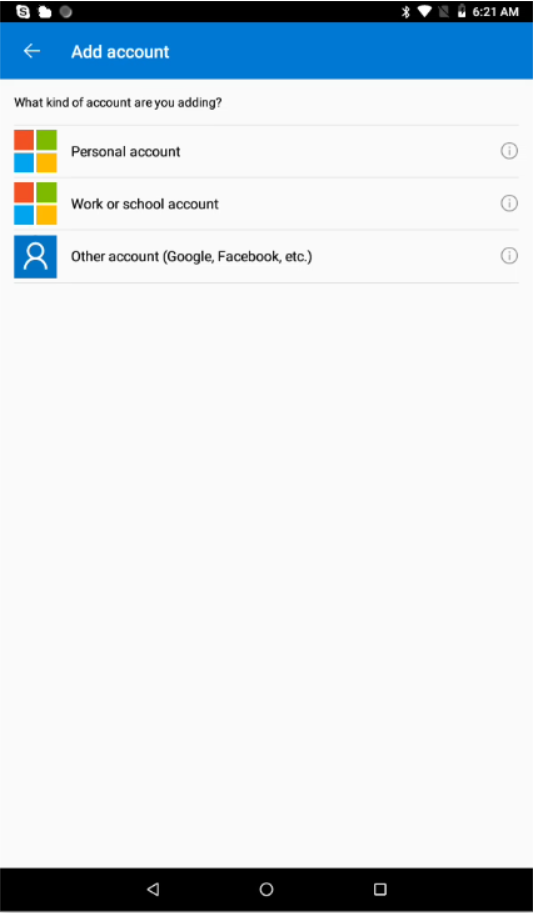
Click on "Other Account (Google, Facebook, etc.)"
-
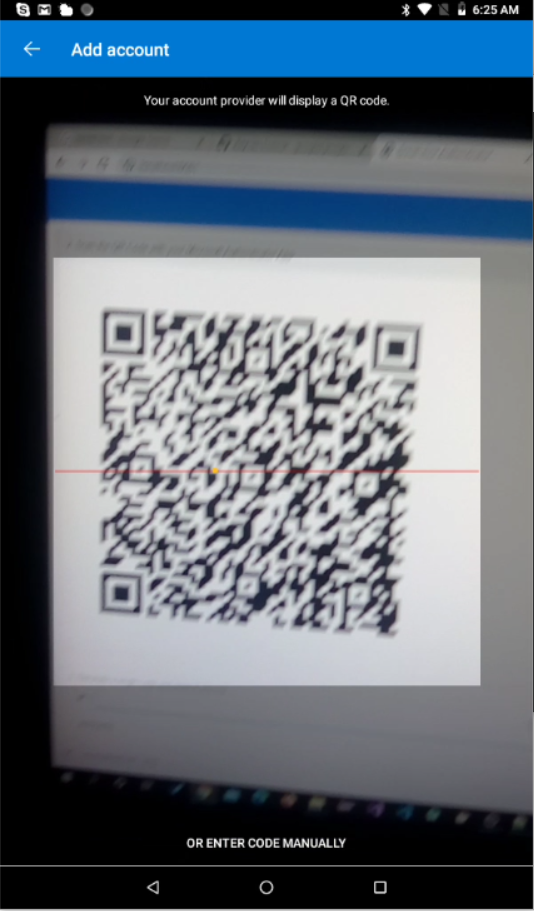
Scan the QR Code
-
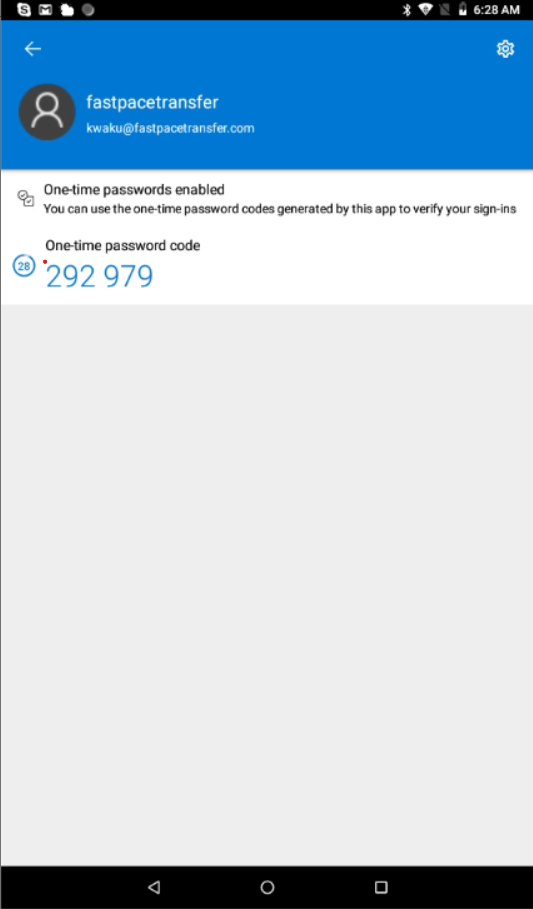
Your user account and name will appear under the "fastpacetransfer" name. Click on it

-
Enter the code shown under the "One-time password code" label into the OTP Code Text box, then click "Activate".
If you get an error message contact the System Administrator